


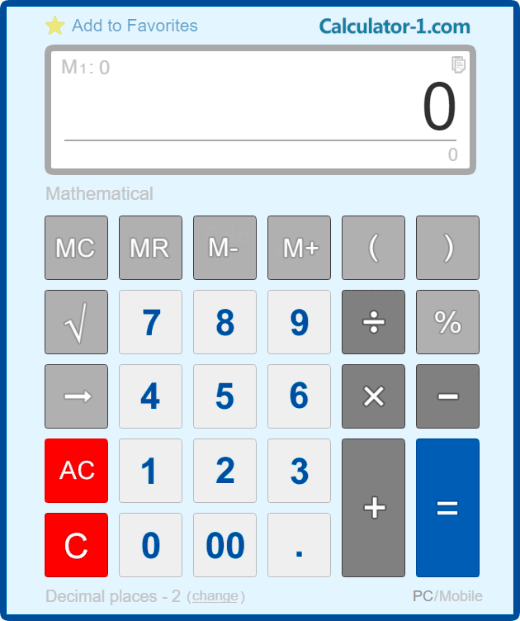

You can use it for work, school, or personal calculations. Perform not only simple math calculations, but also calculate loan interest, bank lending rates, and the cost of services and utilities.
You can enter commands not only with the mouse, but also with a keyboard. See detailed instructions below.
[ 0 ], [ 1 ], [ 2 ], ... [ 9 ] - standard number keys;
[ . ] - inputs a decimal point;
[ 00 ] - inputs two zeros;
[ → ] - removes the last character on the display;
[ +/- ] - changes the sign of the number;
[ XY ] - raises X to the power of Y;
[ √ ] - calculates the square root;
[ + ] - addition, [ - ] - subtraction, [ × ] - multiplication, [ ÷ ] - division;
[ % ] - calculates percentages;
[ M+ ] - adds to memory;
[ M- ] - subtracts from memory;
[ MR ] - gets the contents of memory;
[ MC ] - erases the memory content;
[ AC ] - resets the calculator and clears both current and saved memory;
[ C ] - resets the calculator without resetting the memory;
[ ( ] and [ ) ] - groups operations with parentheses.
Calculate the square root of 529: 529 [ √ ]. The result is 23.
Raise the number 3 to the power of 4: 3 [ XY ] 4 [ = ]. The result is 81.
Calculate a percentage of a number: 500 [ × ] 25 [ % ]. The result is 125.
Calculate what percentage one number is of another: 25 [ ÷ ] 500 [ % ]. The result is 5%.
Add a percentage to a number: 500 [ + ] 25 [ % ]. The result is 625.
Subtract a percentage from a number: 500 [ - ] 25 [ % ]. The result is 375.
You can use both the numeric keys at the top of the keyboard and the numeric keypad on the right.
To enter [ = ] - press the [Enter] key.
To erase the last character - press the [Backspace] key.
To enter [ + ] - press [ + ] at the top or [ + ] on the numeric keypad on the right.
To enter [ - ] - press [ - ] at the top or [ - ] on the numeric keypad on the right.
To enter [ × ] (multiplication) - press [ * ] on the numeric keypad or [Shift] + [8] on the main keyboard.
To enter [ ÷ ] (division) - press [/] on the numeric keypad or [Shift] + [/] on the main keyboard.
Mathematical/Accounting mode - click "Mathematical" or "Accounting" below the display to switch between modes:
- Mathematical - supports parentheses for grouping operations;
- Accounting - calculates sequentially in the order entered.
Copy results:
- click the icon in the top right corner of the display to copy the result;
- click the calculation line in the bottom right corner of the display to copy the current calculation;
- click the memory value (next to M1/M2/M3) in the top left corner of the display to copy it.
Number of decimal places - set how many digits appear after the decimal point in results (0 to 10, or F for no rounding). Click "change" at the bottom left of the calculator to adjust.
PC/Mobile mode - click "PC/Mobile" at the bottom right of the calculator to switch:
- PC - standard desktop interface;
- Mobile - mobile-friendly interface with larger buttons.
Calculator size - choose a comfortable size from preset options in the dropdown menu below the calculator, from very small to big.
Memory cells - the calculator has 3 memory cells (M1, M2, M3). Click the cell name (M1) in the top left corner of the display to switch between cells:
- M+ - adds the current value to the memory cell;
- M- - subtracts the current value from the memory cell;
- MR - recalls the value from the memory cell;
- MC - clears the memory cell.
Why does the calculator show 8 for 2+2×2?
The calculator performs operations in the order they are entered, without applying the standard mathematical order of operations. You can see the current calculation in the smaller display below the main one.
The calculation order for this example is as follows: 2+2=4, subtotal - 4. Then 4×2=8, the answer is 8.
The ancestor of the modern calculator is the abacus, which means "board" in Latin. An abacus was a grooved board with movable counting labels (stones or bones).
Presumably, the first abacus appeared in ancient Babylon around 3000 BC. In ancient Greece, the abacus appeared in the 5th century BC.